

iOS 27 Stuck on Apple Logo: Causes & Fixes
 Jerry Cook
- Updated on 2026-08-31 to iOS 27
 Jerry Cook
So, you downloaded the iOS 27 to test the latest features, but now your iPhone is completely unresponsive. Getting iOS 27 stuck on apple logo screens is incredibly frustrating, but it is a surprisingly common glitch. Usually, an unstable beta file or a background system crash is to blame.
Your photos, messages, and settings are still safe. You can easily fix this glitch yourself. Here are 7 quick, user-friendly fixes to bypass the freeze and get your iPhone back to normal.

- Part 1. Why Is iOS 27 Stuck on Apple Logo?
- Part 2. Check Before You Fix iOS 27 Stuck on Apple Logo
- Part 3. How to Fix iOS 27 Stuck on Apple Logo
- Method 1. Wait and Restart the Update Process [For Moving Progress Bar]
- Method 2. Force Restart iPhone [Quick Fix]
- Method 3. Fix iOS 27 Stuck on Apple Logo Without Data Loss [Recommended]
- Method 4. Update iPhone in Recovery Mode via Finder/iTunes [Official Method]
- Method 5. Restore iPhone with Finder/iTunes [Data Loss Risk]
- Method 6. Use DFU Mode Restore [Last Resort]
- Method 7. Downgrade or Remove iOS 27 After Fixing
- Part 4. How to Prevent iOS 27 from Getting Stuck Again
- FAQs About iOS 27 Stuck on Apple Logo
Part 1. Why Is iOS 27 Stuck on Apple Logo?
The iOS 27 stuck on apple logo issue usually happens due to software glitches during or after installation. Since beta versions are unstable, small errors can stop the device from booting properly and leave it frozen on the Apple logo screen.
1. Corrupted Update File
Interrupted download or installation can damage system files, preventing iPhone from starting normally.
2. Incompatible Apps
Old or unsupported apps may conflict with the new iOS beta and cause startup crashes.
3. Insufficient Storage
Low free space during update can interrupt installation and lead to boot issues.
4. System Crash (Kernel Panic)
A serious internal error can force iOS to stop the boot process for safety reasons.
5. Overheating Issue
High temperature during installation may cause the system to pause or freeze at startup.
Part 2. Check Before You Fix iOS 27 Stuck on Apple Logo
-
Give it some time first many users mistake a slow update process for a freeze, especially with the ios 27 beta frozen screen.
-
Keep your iPhone connected to power using an original charger to avoid shutdown from low battery.
-
Check device heat; if it feels too warm, let it cool down before doing anything else.
-
Notice if the phone is restarting again and again, which indicates a boot loop.
-
Try connecting it to a computer to see if it is detected at all.
-
Make sure iTunes or Finder is updated before starting any repair process.
-
Use a stable Wi-Fi connection if any recovery download is required.
Part 3. How to Fix iOS 27 Stuck on Apple Logo
Method 1. Wait and Restart the Update Process [For Moving Progress Bar]
Sometimes the ios 27 beta apple logo issue is not a real freeze. During beta updates, the system performs heavy file extraction and migration in the background. This can make the screen look stuck even when it is still working.
If you still see a progress bar, keep the iPhone connected to power and a stable network. Do not interrupt it for at least 30--60 minutes. Once the process completes, the device usually restarts automatically.
Pros:
- Safest option, no risk of data loss
- No tools or computer required
- Works if iPhone is still processing in background
Cons:
- No guarantee it will work
- Takes time (30--60+ minutes)
- Not effective if system is actually frozen
Method 2. Force Restart iPhone [Quick Fix]
A force restart helps clear temporary glitches causing the ios 27 beta hanging problem. It does not delete your data and is safe to try first.
Steps:
step 1: Quickly press and release Volume Up
step 2: Quickly press and release Volume Down
step 3: Press and hold the Side (Power) button
step 4: Keep holding until the Apple logo disappears and reappears. Release the button and wait for the iPhone to reboot.
Pros:
- Takes less than a minute to cut power and reboot the device hardware.
- Merely clears local cache memory; leaves all user files untouched.
- No third-party tools, paid licenses, or external subscriptions needed.
Cons:
- Does not repair deeply corrupted iOS 27 firmware files.
- Rarely solves complex system crashes induced by developer beta builds.
Method 3. Fix iOS 27 Stuck on Apple Logo Without Data Loss [Recommended]
The ios 27 beta apple logo issue usually happens when core iOS files are damaged, so the system can't boot normally and simple restarts don't fix it. UltFone iOS System Repair is designed specifically for these types of iOS failures.
It repairs core iOS system errors, including corrupted files and boot issues. This process avoids a full restore, so your photos, apps, and data remain safe. This makes it one of the most practical solutions for the ios 27 beta frozen screen problem.
-
No Data Loss: Unlike factory reset, it repairs system issues while keeping your photos, messages, and apps safe.
-
One-Click iOS Downgrade: Easily downgrade to a stable iOS version in just one step.
-
Fixes 150+ iOS Issues: Resolves Apple logo stuck, black screen, boot loop, and system failure problems.
-
Compatible with Latest iOS: Fully supports the newest iOS updates and iPhone/iPad models.
-
Simple Step-by-Step Process: Easy-to-use interface that guides you through each step without technical skills.
Steps to fix ios 27 beta boot loop with ultfone system repair:
-
step 1 Download and install UltFone iOS System Repair. Connect your iPhone to the computer using an original Apple USB cable and click start from interface.
-
step 2 On the main interface, choose Standard Repair Mode (this option is important because it fixes system issues without erasing data).
-
step 3 The software will automatically detect your device model and iOS version. Click Download and wait until the firmware file.
-
step 4 After that, select Start Standard Repair to begin fixing the iOS system errors causing the Apple logo stuck or frozen screen issue.
-
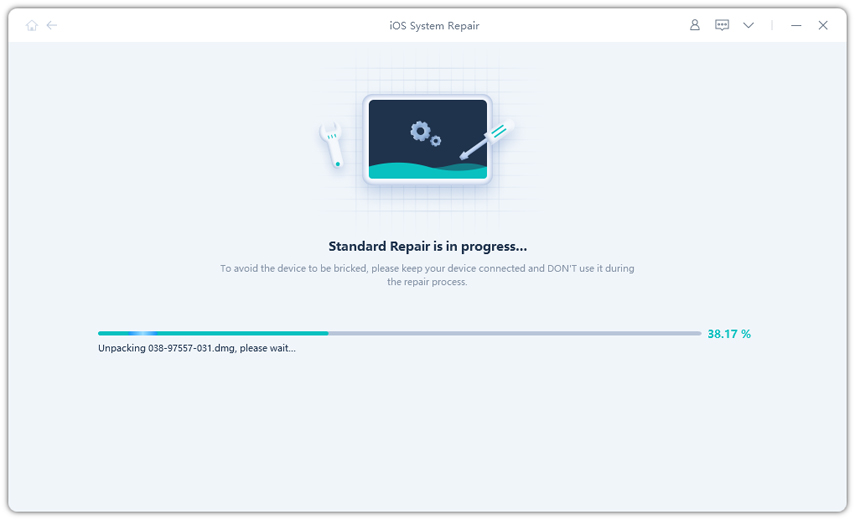
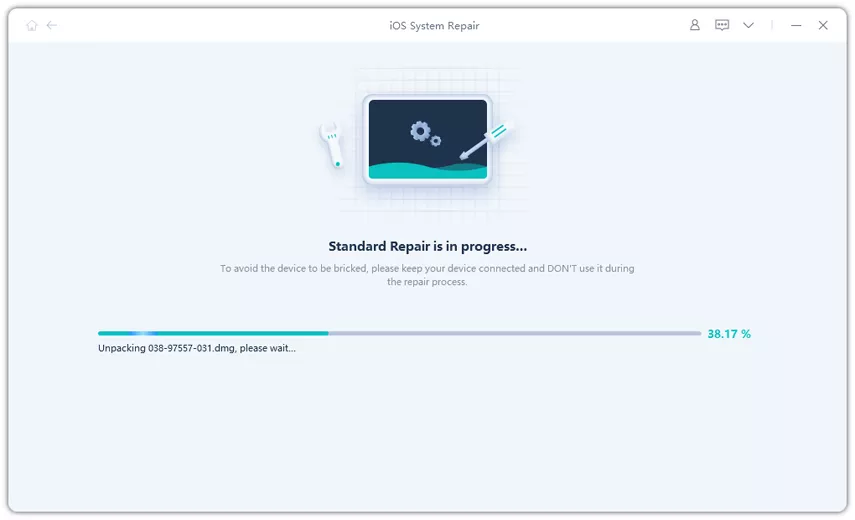
step 5 Do not disconnect your device during the process, as it may interrupt system repair and cause further issues.
Pros:
- Safely patches broken core system files with 0% data loss in Standard Repair.
- Clears 150+ distinct issues like boot loops, black screens, and frozen states.
- Features a clean, simple interface to downgrade the unstable beta layout with one click.
- Specifically optimized to handle unstable or broken developer firmware code safely.
Cons:
- Must be installed on a Windows PC or Mac.
- Access to the advanced system repair toolkit requires a paid license.
Method 4. Update iPhone in Recovery Mode via Finder/iTunes [Official Method]
Apple's Recovery Mode is a simple official fix for the ios 27 beta apple logo issue. It helps when a failed update or weak connection stops your iPhone from starting. It lets your computer reinstall iOS through Finder or iTunes while skipping the broken system on your device.
It usually keeps your data safe, but not always. If the system is too damaged, the "Update" option may turn into a full restore.
Here is how to put iphone in recovery mode to fix iOS 27 stuck on apple logo:
step 1: Start by putting your iPhone into Recovery Mode.
iPhone 8 and later (iPhone X, 11, 12, 13, 14, 15, 16, 17):
-
Press and quickly release Volume Up
-
Press and quickly release Volume Down
-
Press and hold Side button
-
Keep holding until Recovery Mode screen appears
step 2: Next, connect your iPhone to the computer using a USB cable. Open Finder on Mac or iTunes on Windows and wait until the device is detected in Recovery Mode.
step 3: Select Update instead of Restore. This option reinstalls iOS system files while trying to keep your data safe.
step 4: After that, the computer will download the required iOS firmware from Apple servers.
step 5: Once the download is complete, installation will begin automatically. Your iPhone may restart and show a progress bar while the system is repaired.
step 6: When finished, your iPhone should start normally. If it still gets stuck on the Apple logo, the issue may require a full restore or a deeper repair method.
Pros:
- Rewrites core operating files while trying to protect user applications and media.
- Completely free to download and run via Finder or iTunes.
- Automatically updates the device to a fresh, active iOS build file.
Cons:
- Official recovery tools often struggle to process experimental beta code pathways.
- If the installation fails halfway through, the app forces a complete reset.
- If the heavy firmware download takes over 15 minutes, the phone exits recovery mode automatically.
Method 5. Restore iPhone with Finder/iTunes [Data Loss Risk]
This is the "start from zero" option. When the ios 27 beta frozen screen becomes too serious and nothing else works, a full restore wipes everything and installs a completely fresh version of iOS. It removes all corrupted system files, failed updates, and deep software errors that are causing the Apple logo issue.
Before using this, the most important step is checking your backup. Because once the restore begins, everything on the device is erased permanently.
Lets see how to restore iphone to fix ios 27 beta frozen screen:
step 1: Put your iPhone into Recovery Mode using the same steps as Method 4. You'll see the cable-to-laptop screen once it's active.
step 2: Plug your iPhone into a Mac or Windows PC using a USB cable. Open Finder (Mac) or iTunes (Windows) and wait for detection.
step 3: When the popup appears, click Restore and confirm. This will erase everything and start a fresh installation.
step 4: Your computer will download the latest iOS from Apple servers. Keep your internet stable and device connected during this step.
step 5: Once downloaded, the system will erase your iPhone and reinstall iOS automatically. Do not disconnect your device.
Pros:
- Very effective for serious system issues and Apple logo stuck problems.
- Completely removes corrupted system files and glitches.
- Works when Recovery Mode "Update" fails.
- Gives a clean, fresh iOS installation.
Cons:
- Deletes all data from the device.
- Requires backup to restore personal files.
- Takes time to download and reinstall iOS.
- Needs stable internet and computer connection.
Method 6. Use DFU Mode Restore [Last Resort]
DFU Mode is what you use when nothing else works. It goes deeper than Recovery Mode and completely bypasses the iPhone's system startup.
It's powerful, but it also requires caution. If done incorrectly, it may just boot into Recovery Mode instead. Also, it cannot fix hardware issues or Activation Lock problems.
Here is how to use dfu mode to fix iOS 27 stuck on apple logo:
step 1: Plug your iPhone into Mac or Windows PC and open Finder or iTunes.
2. Enter DFU Mode (by model)
iPhone 8 and later:
-
Press Volume Up, Volume Down
-
Hold Side button for 10 sec
-
Hold Side + Volume Down for 5 sec
-
Release Side, keep holding Volume Down for 10 sec
-
Screen stays completely black
iPhone 7 / 7 Plus:
-
Hold Side + Volume Down for 8 sec
-
Release Side, keep holding Volume Down for 5 sec
iPhone 6s and earlier:
-
Hold Home + Power for 8 sec
-
Release Power, keep holding Home for 5 sec
(Screen must stay black = DFU active)
step 2: Finder/iTunes will detect DFU mode. Click Restore iPhone.
step 3: System will download firmware and fully reinstall iOS. Keep device connected for 30--60 minutes. After completion, iPhone restarts to setup screen.
Pros:
- Deepest level fix for severe system corruption
- Works even when Recovery Mode fails completely
- Fully restores iPhone to factory-like system state
Cons:
- Completely wipes all data with no recovery
- Hard to enter correctly (timing-sensitive)
- Requires computer and stable software tools
Method 7. Downgrade or Remove iOS 27 After Fixing
Once your iPhone is fixed, you may still want to remove the iOS 27 if it feels unstable or causes issues like freezing or battery drain. To avoid future problems, you can downgrade to the stable iOS version.
It removes beta bugs and gives you a smooth, stable iPhone with better performance.Downgrading erases your iPhone..
Steps of how to downgrade ios 27 beta:
step 1: Open the Settings app on your iPhone, tap your name at the top, select Find My, and turn off Find My iPhone.
step 2: Plug your iPhone into your computer using an official cable. Open Finder (Mac) or iTunes (Windows). Force your device into Recovery Mode by quickly pressing Volume Up, quickly pressing Volume Down, and then holding the Side button until the recovery screen appears.
step 3: A prompt will appear on your computer screen. Click the Restore button (do not click Update). This tells your computer to wipe the experimental iOS 27 files completely.
step 4: Your computer will automatically download and install the latest public, stable version of iOS. Once the process finishes, your iPhone will reboot to the setup screen.
Pros:
- Brings back stable and smooth iOS performance
- Removes beta bugs and random system crashes
- Improves battery life and overall speed
Cons:
- May require full device erase during downgrade
- Some data cannot be restored from newer beta backup
- Depends on Apple signing (not always available)
- Needs computer and stable internet connection
Part 4. How to Prevent iOS 27 from Getting Stuck Again
-
Make sure your iPhone has enough free storage before starting any update.
-
Use a strong and stable Wi-Fi connection to avoid download interruptions.
-
Restart your iPhone once before updating to clear small system glitches and background errors that may interfere with installation
-
Do not touch or restart your device once the update has started, even if it looks slow, because interrupting it can cause the ios 27 beta apple logo issue.
-
Keep your iPhone in a cool environment during installation, as overheating can slow down or pause the update process.
-
Always update your apps before installing a new iOS version so they stay compatible and do not crash during or after the update
-
Always create a full backup before installing beta software so your data stays safe if something goes wrong.
-
For daily use, prefer stable iOS releases instead of beta versions to avoid future freezing or boot issues.
FAQs About iOS 27 Stuck on Apple Logo
1. How long should I wait if iOS 27 is stuck on Apple logo?
Wait around 30--60 minutes. Sometimes the phone is still installing or processing updates in the background.
2. Will force restart delete my iPhone data?
No, a force restart does not delete any data. It only refreshes the system and fixes minor glitches.
3. Can I fix iOS 27 stuck on Apple logo without iTunes?
Yes, you can try force restart or tools like UltFone iOS System Repair. But deeper issues may still need iTunes or Finder.
Conclusion:
Although the iOS 27 stuck on apple logo issue is annoying, software bugs and unsuccessful upgrades are typically to blame. Most iPhones may be repaired and returned to normal with the correct strategy. Using UltFone iOS System Repair provides an excellent alternative to risky factory wipes. It repairs system errors safely and helps restore your iPhone without losing your important data.
- 1-click to fix iPhone/iPad stuck in recovery mode for free
- Repair 150+ iOS 27/26/18 update problems without data loss
- Fix iOS 27/26 downgrade stuck problems
- Downgrade iOS 27/26 without losing data
- Fix 100+ iOS update/restore error
