

Get the iOS 27 Download Safely with 6 Easy Install Methods
 Jerry Cook
- Updated on 2026-09-02 to iOS 27
 Jerry Cook
Looking for the iOS 27 download for your iPhone? For most users, Apple's public release through Software Update is the best place to start; beta builds are mainly for developers and testers who need pre-release software.
This guide covers six practical ways to download iOS 27, what to check first, and what to do when the update does not appear or install properly.

Quick Answer:
- For most users, go to Settings > General > Software Update and install the public iOS 27 release when it appears.
- Use Developer Beta or Public Beta only if you specifically need a pre-release build for testing.
- Back up first, stay on Wi-Fi and power, and use a computer only if the OTA update fails.
- Part 1. iOS 27 Download Status & Compatibility
- Part 2. Before You Download iOS 27
- Part 3. How to Download and Install iOS 27 [6 Ways]
- Part 4. iOS 27 Not Showing Up or Installing?
- Part 5. Fix iOS 27 Update Problems Without Restoring
- Part 6. FAQs About iOS 27 Download
Part 1. iOS 27 Download Status & Compatibility
iOS 27 is in the final stage of beta testing, with the public release close behind. For most users, the stable public build is the version to install once it appears in Software Update.
1. Is iOS 27 Available to Download?
Yes. Apple introduced iOS 27 on June 8, 2026, and iOS 27 Beta 8 arrived on August 31. Apple says iOS 27 will be available as a free software update this fall, so most users can wait for the public build rather than install a late beta.
2. What Is New in iOS 27?
iOS 27 is more about refinement than a dramatic redesign. It brings smarter Siri and Apple Intelligence features, smoother day-to-day performance, and more polish across the Liquid Glass interface and system apps.
3. iOS 27 Compatible iPhones
Apple lists iPhone 11 and newer, plus iPhone SE (2nd generation and later), as compatible with iOS 27. Some Apple Intelligence features still require newer hardware.
iPhone 11, 12, 13, 14, 15, 16, and 17 families, including supported mini, Plus, Pro, Pro Max, Air, and e models.
iPhone SE (2nd generation) and later.
Compatibility does not guarantee every feature. Apple Intelligence and other hardware-dependent tools are limited to supported newer iPhones.
Part 2. Before You Download iOS 27
A major update is much easier to undo when you have a fresh backup. Before you start, check three basics: backup, free storage, and a stable Wi-Fi connection.
1. Back Up Your iPhone First
Create an iCloud or computer backup before any iOS 27 install. It takes a few minutes and gives you a way back if the update goes wrong.
-
step 1 Open "Settings" on your iPhone. Tap your name at the top.
-
step 2 Select "iCloud." Tap "iCloud Backup." Hit "Back Up Now."
You can also back up your iPhone on a Mac or PC using Finder or iTunes.
2. Use iOS 27 Beta Builds Only If You Need Them
With the public release close, most users have little reason to put a beta on their main iPhone. Beta builds are still useful for app testing, but they can bring battery drain, app issues, or update failures. If you still need one, use a secondary iPhone and back it up first.
Part 3. How to Download and Install iOS 27 [6 Ways]
Here are six ways to download and install iOS 27. Start with Apple's built-in update method; use the other options only when you need a testing build, a manual IPSW, or a fallback for a failed OTA update.
1. Install iOS 27 from iPhone Settings
For most people, this is the best place to start. It is Apple's official OTA method and does not require a computer.
- step 1 Open "Settings" on your iPhone. Head to "General." Tap "Software Update."
- step 2 When iOS 27 appears, tap "Update Now" or "Download and Install." Open "Beta Updates" only if you intentionally want a Developer Beta or Public Beta.
2. Download and Install iOS 27 with UltFone
When the update is missing, stuck, or you want a desktop-based route, UltFone iOS System Repair can download compatible firmware and guide you through the upgrade without relying on the iPhone's OTA process.
It is especially useful when OTA updates repeatedly fail, and it also supports available iOS version changes and system repair when an update leaves the iPhone stuck.
To download iOS 27 with UltFone:
-
step 1 Open UltFone on your computer and connect your iPhone to your computer. Then, click "iOS Upgrade/Downgrade."
-
step 2 Select "Upgrade" mode, then tap "Upgrade." UltFone will detect your iOS version and show the available iOS 27 firmware update.
-
step 3 Click "Download" to start. Wait a few minutes while the firmware downloads.
-
step 4 After the download, click "Initiating Upgrade" to start the update. Hit "Continue."
-
step 5 The upgrade process will begin. Do not disconnect your device. Once finished, your iPhone will restart on the iOS 27 version. Hit "Done."
3. Install iOS 27 Developer Beta for Testing
The Developer Beta is for developers and testers who need pre-release iOS 27 builds for app or compatibility testing. Once the public version is available, most users should skip this method and install the stable release instead.
-
step 1 Sign in at developer.apple.com with the Apple Account linked to your iPhone.
-
step 2 Sign in with your Apple ID on your iPhone. Then, head to "Settings." Choose "General." Tap "Software Update."
-
step 3 Click "Beta Updates." Next, select "iOS 27 Developer Beta." Hit "Update Now."
-
step 4 Follow the on-screen prompts. Your iPhone will restart and complete the installation.
4. Install iOS 27 Public Beta for Early Testing
The Public Beta is a simpler testing option than the developer channel, but it is still pre-release software. With the stable release close, use it only if you specifically want to test iOS 27 before the public build reaches your iPhone.
-
step 1 Visitbeta.apple.com on your iPhone or computer. Sign in with your Apple ID and enroll your iDevice.
-
step 2 Once enrolled, head to "Settings." Choose "General." Next, click "Software Update." Tap "Beta Updates."
-
step 3 Select "iOS 27 Public Beta." Hit "Update Now." Complete the on-screen steps.
5. Install iOS 27 with an IPSW File
An IPSW file gives you a manual installation route through a Mac or PC. Use it only when you know the exact firmware for your iPhone and understand the difference between Update and Restore.
-
step 1 Get the IPSW iOS 27 download for free for your iPhone from trusted sites, such asipsw.me or beta.apple.com.
-
step 2 Install the latest version of Finder (Mac) or iTunes (Windows) on your computer. Connect your iPhone to your computer using a USB cable.
-
step 3 Open Finder or iTunes and select your device. Hold "Option" (Mac) or "Shift" (Windows) and click "Check for Updates."
-
step 4 A window will open. Choose the IPSW file you downloaded. Hit "Open." Confirm "Update," then wait for the installation to finish (about 10--20 minutes).
6. Update iOS 27 with Finder or iTunes
If the over-the-air update stalls or never appears, a Mac or PC can install iOS 27 through Finder or iTunes. This is a useful fallback when Wi-Fi updating is unreliable.
-
step 1 Make sure your Mac has macOS Catalina or later (Finder) or your Windows PC has the latest iTunes.
-
step 2 Connect your iPhone and unlock it. Then, tap "Trust This Computer" if asked. Open Finder (Mac) or iTunes (Windows) and select your device.
-
step 3 Click "Check for Updates." If iOS 27 appears, tap "Download and Update." Enter your passcode if needed and wait for the installation to finish.
Part 4. iOS 27 Not Showing Up or Installing?
When iOS 27 does not appear in Software Update, the cause is usually compatibility, storage, connection, a pending update, or temporary server congestion. Try these checks in order.
1. Check iPhone Compatibility
Make sure your iPhone supports iOS 27. Unsupported models will not receive the update in Software Update.
2. Install the Latest Stable Update First
Install any pending stable iOS update, then check Software Update again.
3. Restart Your iPhone
A restart can clear a stuck update check. Turn the iPhone off, power it back on, and return to Software Update.
4. Check Apple System Status
If many users are updating at once, Apple's servers can slow down. Check Apple System Status and try again later if needed.
5. Free Up Storage
Make some room before downloading. A major update needs extra temporary space to unpack and install the firmware.
Part 5. Fix iOS 27 Update Problems Without Restoring
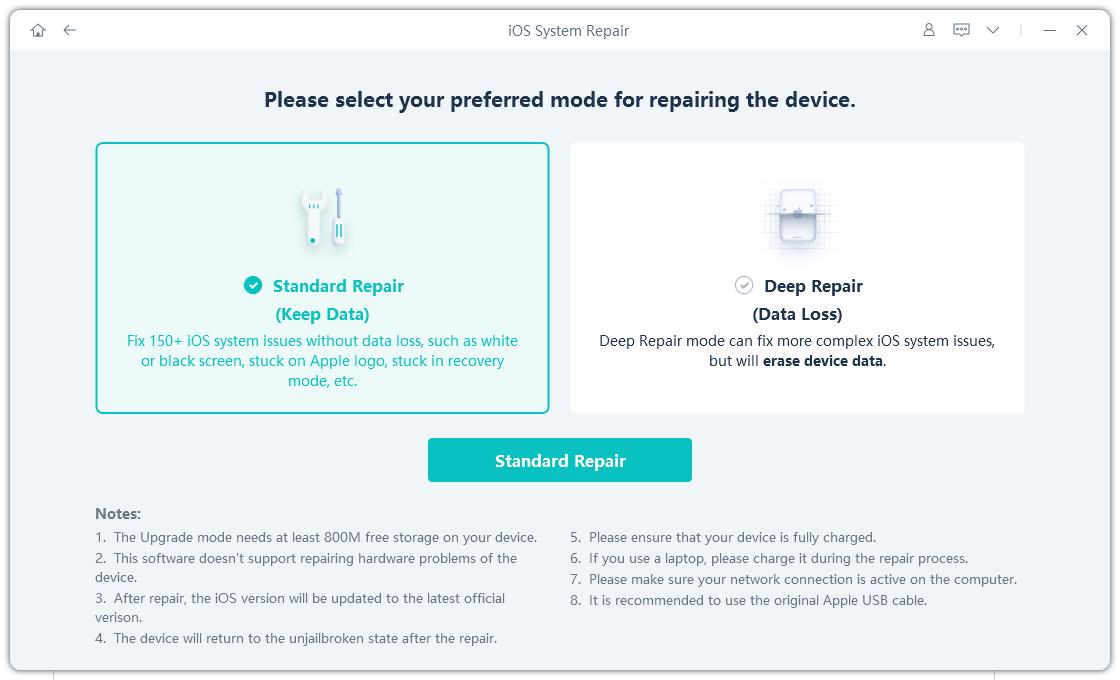
An update can finish badly even after the download works: the iPhone may freeze on the Apple logo, restart repeatedly, or stop responding. UltFone iOS System Repair offers a Standard Repair mode for common iOS system issues without starting with a factory reset.
Standard Repair is designed for common update failures such as Apple-logo freezes, black screens, restart loops, and Recovery Mode issues while aiming to keep personal data intact.
Here is the short repair process:
-
step 1 Open UltFone on your computer, and connect your problematic iPhone that needs repair. Click "Start Repair."
-
step 2 Choose "Standard Repair." Hit "Standard Repair" again to confirm. Tap "Start Standard Repair."
-
step 3 Hit "Download" to get the firmware package. Once the firmware downloads, click "Start Standard Repair."
-
step 4 Wait for UltFone to repair the iOS 27 update issues. Once completed, your iPhone will reboot normally. Hit "Done."

Part 6. FAQs About iOS 27 Download
1. Is iOS 27 safe to install?
The public iOS 27 release is the version intended for everyday use. Developer and Public Beta builds can still bring bugs, battery drain, or app compatibility issues, so they are better reserved for testing.
2. Can I remove iOS 27?
Yes, but downgrading iOS 27 usually requires a computer and may erase the iPhone. It also depends on whether Apple is still signing the older iOS version.
3. Why is iOS 27 not installing?
Common causes include low storage, unstable Wi-Fi, an unsupported iPhone, server congestion, or a pending iOS update. Restart the iPhone and check those basics first.
4. Will iOS 27 delete my data?
A normal update is designed to keep your data. A restore can erase the device, which is why a fresh backup matters before any major update or manual IPSW install.
5. How big is the iOS 27 download?
The size varies by iPhone model and the iOS version already installed. Leave several gigabytes of free space so the phone has room to download, unpack, and install the update.
Part 7. Final Thoughts
For most users, the easiest iOS 27 download is still Settings > General > Software Update. Choose the stable public release for everyday use; if the normal route does not work, IPSW, Finder/iTunes, or UltFone iOS System Repair can give you another way to install or repair iOS 27.
- 1-click to fix iPhone/iPad stuck in recovery mode for free
- Repair 150+ iOS 27/26/18 update problems without data loss
- Fix iOS 27/26 downgrade stuck problems
- Downgrade iOS 27/26 without losing data
- Fix 100+ iOS update/restore error
