

Jailbreak iOS 27 : Best Tools, Risks, and Fixes
 Jerry Cook
- Updated on 2026-08-31 to iOS 27
 Jerry Cook
iOS 27 is a very locked-down version of iOS with a new “Liquid Glass” design, stronger AI features, and improved security. But to add tweaks or remove restrictions, some users and researchers may still want to jailbreak iOS 27.
However, when you do this, it’s more risky than a normal iOS release because it is still unfinished and buggy. This guide explains how to prepare before trying a jailbreak. It also shares the main jailbreaking tools, the risks involved, and 6 ways to fix the device if something goes wrong.

- Part 1. Tips Before Trying Jailbreak iOS 27
- Part 2. 5 Best Tools for Jailbreak iOS 27
- Part 3. Jailbreak iOS 27: Risks You Should Know
- Part 4. Fix iOS 27 Jailbreak Problems with Repair Steps
- Method 1. Repair iOS 27 Jailbreak Issues Without Data Loss
- Method 2. Force Restart Your iPhone
- Method 3. Remove Problematic Jailbreak Tweaks
- Method 4. Update iPhone in Recovery Mode
- Method 5. Restore with Finder or iTunes
- Method 6. Downgrade from iOS 27
- Bonus Tip: A Safer & Easier iPhone Unlock Tool for Jailbreak Users
- FAQs About Jailbreak iOS 27
Part 1. Tips Before Trying Jailbreak iOS 27
Before you learn how to jailbreak iOS 27, go through this checklist. Skipping these steps is the most popular reason jailbreak iOS 27 attempts end in data loss or a bricked device:
-
Back Up First: Make a full backup with iCloud or an encrypted backup in Finder/iTunes before starting. If something fails, your data could be erased.
-
Check Your Chip: Find out if your iPhone uses an A11, A12, A15, or A16 chip. Jailbreak tools only support specific chips.
-
Avoid Your Main Phone: Don’t jailbreak the device you use daily for banking, work, or 2FA apps. Some apps may stop functioning.
-
Turn Off Find My iPhone: Disable Find My before entering DFU mode. Many jailbreak tools need this turned off.
-
Download From Trusted Sources: Only use official GitHub pages or trusted developer websites. Fake jailbreak tools can contain malware.
-
Use the Right iOS Build: Some Beta versions work with jailbreaks, others don’t. Check your exact iOS 27 build number first.
-
Prepare a Recovery Option: Download the correct IPSW file and keep Finder, iTunes, or repair tools ready in case something breaks.
-
Use a Stable Internet Connection: Avoid public Wi-Fi. Interrupted downloads during the jailbreak process can cause errors or corruption.
Part 2. 5 Best Tools for Jailbreak iOS 27
No public, stable jailbreak exists for iOS 27 as of May 2026. However, several tools have demonstrated exploit chains relevant to early iOS 27 builds, and community research is active. Here are the 5 tools most frequently cited for jailbreak iPhone iOS 27 attempts, along with honest compatibility and caveats. But keep in mind, they may or may not be able to jailbreak iPhone:
1. Palera1n
Palera1n is a semi-tethered, open-source jailbreak tool built on the permanent hardware-level checkm8 bootrom exploit, which means Apple cannot patch it through a software update. It was originally developed for A8–A11 devices and has remained the most reliable option for older hardware running modern iOS versions.
step 1: iOS Version Compatibility: iOS/iPadOS/tvOS 15.0 and above, including iOS 17, iOS 18, and early iOS 26/27 Beta builds, on supported hardware. Note that A10(X) and A11 devices require the passcode to be disabled while in the jailbroken state.
step 2: Device Compatibility: A8 through A11, including iPhone 6s, iPhone 7, iPhone 8, iPhone X, iPhone SE (1st gen), and equivalent iPad models. Also supports T2 chip Macs for bridgeOS 5.0+.
Pros
- Uses a hardware-level exploit that Apple can’t easily block with updates.
- Regularly updated for newer iOS beta versions.
- Supports both rootful and rootless jailbreak modes.
- Works on both supported iPhones and T2 Macs.
- Large community with good guides and support.
Cons
- Needs a computer to reactivate the jailbreak after every reboot
- Only supports A8–A11 devices (up to iPhone X).
- The passcode must be turned off on some A10/A11 devices while jailbroken.
- Usually won’t function properly inside virtual machines like VirtualBox or VMware.
2. Dopamine
Dopamine for jailbreak on iOS 27 is the most discussed tool. Developed by opa334, formerly known as Fugu15 Max, it is a semi-untethered jailbreak. This means you reapply the jailbreak by opening an on-device app after a reboot, with no computer needed. Dopamine 2.5 Beta 3, released in May 2026, significantly expanded its reach using the DarkSword kernel exploit reimplemented in Objective-C.
step 1: iOS Version Compatibility: Dopamine 2.4.x works on iOS 15.0–16.6.1 (most devices). Dopamine 2.5 Beta adds support for iOS 16.7–16.7.16 and iOS 17–18.7.1 on A9(X)–A11 devices. No official support for iOS 26 or 27 yet. Still experimental research only (DarkSword may be exploring it)
step 2: Device Support: A8–A11 (iOS 15–18 beta range). Newer chips (A12–A16, M1–M2) support limited stable iOS 15–16.5/16.5.1. Older low-RAM devices like iPad 6 (2GB RAM) don’t support iOS 17+.
Pros
- Can re-jailbreak directly from the phone after setup, with no computer needed each time.
- Comes with Sileo and supports tweaks.
- Rootless setup is safer for system files.
- Frequently updated by developers.
- DarkSword exploit may support newer iOS 17–18+ versions.
Cons
- DarkSword may not support some older A8/A9X devices.
- App may need re-signing every 7 days on iOS 16.7+.
- Jailbreak app can sometimes crash during the process.
- Beta versions may be unstable, and some apps, like Zebra, can crash.
- No confirmed support for iOS 26/27 yet.
3. Checkra1n
Checkra1n pioneered the checkm8-based jailbreak approach and is the gold standard for dependable iPhone jailbreaks. It’s the tool that inspires Palera1n. However, development on Checkra1n has stalled significantly. Its last stable version capped out at iOS 14.x, with no meaningful updates for iOS 15 or above.
step 1: iOS Version Compatibility: Officially supports iOS 12.0 through 14.8.1. Limited/virtual options exist for iOS 26.
step 2: Device Compatibility: A5 through A11 devices, including iPhone 5s through iPhone X and equivalent iPad models.
Pros
- Very stable on supported iOS 12–14 devices.
- Uses the dependable checkm8 hardware exploit.
- Has years of community support and guides.
- Core jailbreak engine is still used in Palera1n.
Cons
- No real support for modern iOS versions.
- Does not support iOS 15 or newer officially.
- Cannot jailbreak iOS 27 beta devices.
- Needs a Mac or Linux computer after every reboot.
- Windows support is unreliable. Linux works best.
4. Unc0ver
Unc0ver, developed by Pwn20wnd, is a dominant semi-untethered jailbreak for newer Apple Silicon devices. It supports A12–A14 devices and runs cleanly on iOS 11 through 14.8. However, like Checkra1n, active development has largely stopped.
step 1: iOS Version Compatibility: iOS 11.0 through 14.8 (with iOS 14.3 being the most stable). There are community forks claiming iOS 15 support, but none are officially sanctioned or considered safe.
step 2: Device Compatibility: Broad, A7 through A14 (iPhone 5s through iPhone 12 series) on its supported iOS range. Does not support iOS 15+ on any device.
Pros
- Can re-enable jailbreak from an app without needing a computer.
- Uses Cydia, with a large collection of older tweaks.
- Works well on iOS 11–14.
- Supports A12–A14 devices, which some older tools don’t.
Cons
- No longer being actively updated.
- Doesn’t work on iOS newer than 14.8.
- Depends on old exploits that are already patched.
- Unofficial iOS 15 versions are risky and may be unsafe.
- Not usable for modern iOS, like 27 Beta, in any way.
5. Online Jailbreak Tools
Some browser-based kits or virtual-method solutions can also jailbreak iOS 27 Beta without requiring a computer, cable, or signed IPA. They’re alternatives for users who can't use hardware-based tools. For instance, Coruna Jailbreak, a WebKit-based app, operates directly in iOS Safari. After jailbreaking your device, you can customize it without needing a computer or a traditional IPA signer to install and use it.
step 1: iOS Version Compatibility: Most tools support iOS 14 through iOS 26.x. In practice, legitimate ones install customization profiles, sideload apps, or enable virtual tweak environments. But they do not perform kernel-level exploits.
step 2: Device Compatibility: Broadly, all devices, because they operate above the kernel and don't require a hardware exploit.
Pros
- Works directly from Safari, no computer needed.
- Lower chance of serious system damage.
- Useful for themes, app stores, and light “tweaks.”
- Easy for beginners to use.
Cons
- Not a real jailbreak (no deep system/root access).
- Many fake sites can steal Apple ID info.
- Limited tweak support compared to real jailbreaks.
- Apps often stop functioning when certificates expire.
- Frequently gets blocked by Apple and stops working.
Part 3. Jailbreak iOS 27: Risks You Should Know
Jailbreaking a beta operating system compounds the risks of jailbreaking a stable release. iOS 27 is, by definition, unfinished software running on top of a modified exploit chain. That’s two layers of instability at once. Here’s what you're actually taking on:
1. System Risks
If the jailbreaking tool doesn’t match your exact iOS version, it can damage system files. The tool can cause boot loops or Recovery Mode issues, sometimes making the phone hard to detect on iTunes or Finder.
If a semi-tethered jailbreak is interrupted, the device may fail to start properly. It can also drain more battery because extra background processes run, and it may affect repair eligibility since traces of the jailbreak can remain even after restoring.
2. Security Risks
Jailbreaking removes key iOS security protections like app sandboxing, code signing, and kernel safety checks. This means apps or tweaks from Sileo/Cydia could access your whole device, including passwords, iCloud Keychain, and login tokens. If SSH is installed and not secured properly, it may allow remote access over Wi-Fi.
3. App and Daily Use Risks
Banking and work apps can detect jailbreaking and may not open or may block features. Apple Pay also stops functioning. Face ID and Touch ID can become unreliable if system changes are made.
Since iOS Beta versions already have app issues, jailbreak tweaks can make them worse. Also, updates may fail, leaving you stuck on an older version unless you fully restore the device.
Part 4. Fix iOS 27 Jailbreak Problems with Repair Steps
When a jailbreak iOS 27 beta attempt goes sideways, the fix depends entirely on what broke and how badly. Below are 6 methods from least destructive to most invasive:
Method 1. Repair iOS 27 Jailbreak Issues Without Data Loss
UltFone iOS System Repair can fix iPhones that are stuck on the Apple logo, in a boot loop, frozen, or not responding. It’s especially useful after a failed jailbreak on iOS 27 Beta, and can fix system problems without deleting your data, unlike a full restore in iTunes/Finder. Here’s what more UltFone offers:
-
Fixes 150+ iOS system issues, including boot loops, Apple logo freezes, Recovery Mode loops, and black screens.
-
Standard Repair mode preserves all personal data, apps, and settings.
-
One-click Recovery Mode entry and exit, useful when the device is stuck in a jailbreak-triggered Recovery loop.
-
Supports iOS downgrade (e.g., rolling back from iOS 27 to iOS 26 stable).
-
Compatible with the full current iPhone lineup, including the iPhone 17 series and iOS 26/27 Beta builds.
Available for both Windows and macOS.
Here’s how to fix iOS 27 jailbreak issues on your iPhone with UltFone:
-
step 1 Open UltFone on your computer. Then, connect your jailbroken iPhone to the same PC. Click “Start Repair.”
-
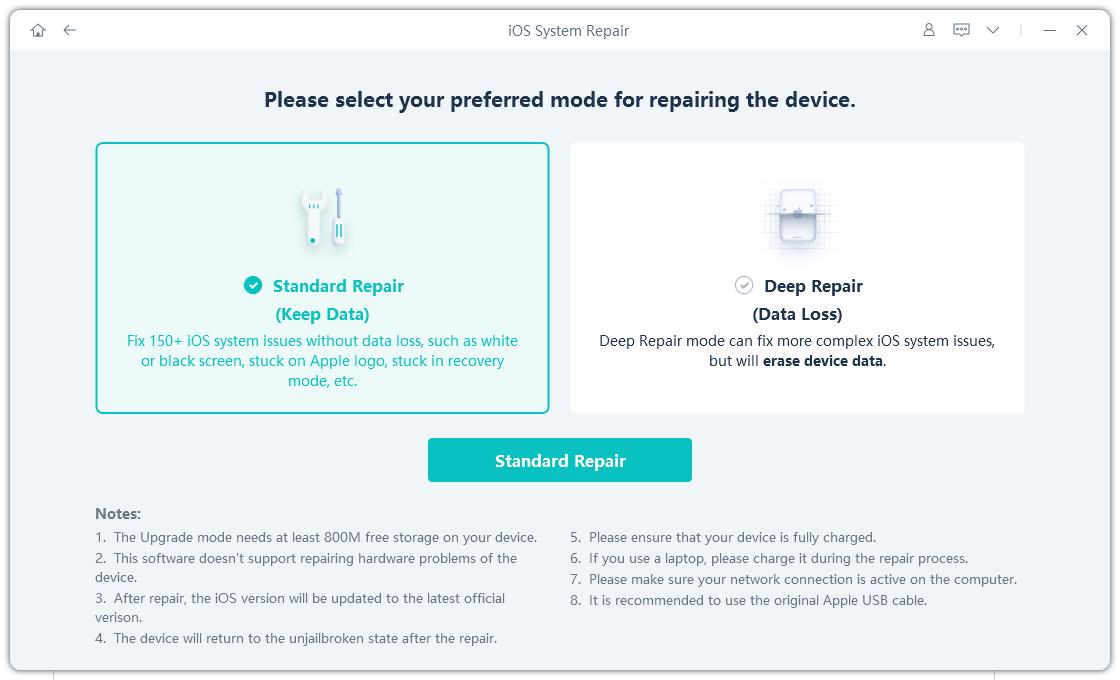
step 2 Choose “Standard Repair.” Hit “Standard Repair” again to confirm. Tap “Start Standard Repair.”
-
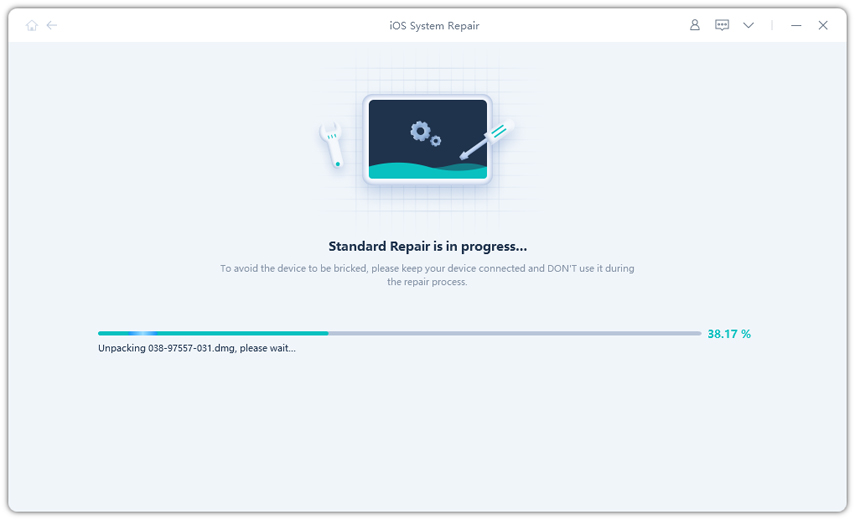
step 3 Hit “Download” to get the firmware package. Once the firmware downloads, click “Start Standard Repair.”
-
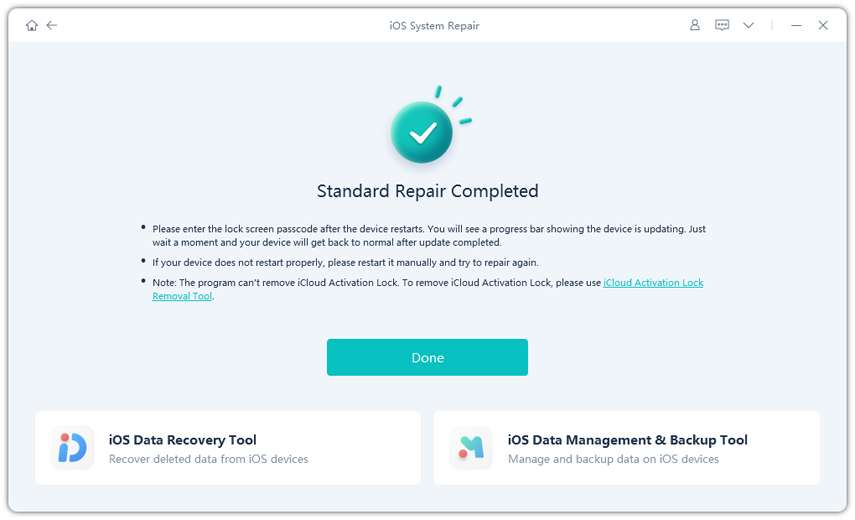
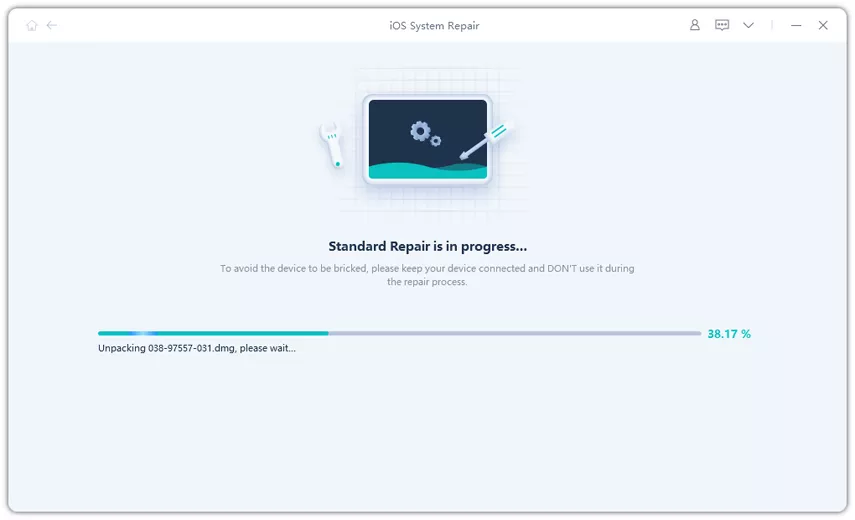
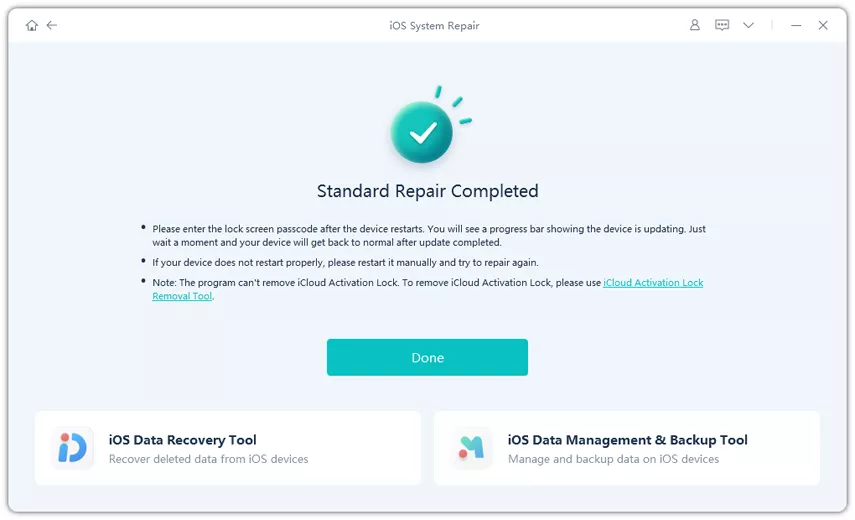
step 4 Wait for UltFone to repair the issues arising from the iOS 27 jailbreak. Once completed, your iPhone will restart without the problems. Hit “Done.”

Method 2. Force Restart Your iPhone
A force restart is useful if your iPhone becomes frozen or unresponsive right after using a jailbreak tool, but it is not stuck in a full boot loop. It resets the phone’s temporary memory and restarts it without changing any system files. A force restart won’t remove the jailbreak, but it can fix short-term crashes or glitches caused during the process. Here’s how to go about it:
- step 1 Press and quickly release the “Volume Up” button. Then, press and quickly release the “Volume Down” button.
- step 2 Press and hold the “Side” (Power) button until the Apple logo appears, then release.
Method 3. Remove Problematic Jailbreak Tweaks
Your iPhone starts normally but has problems like app crashes, fast battery drain, bugs, or display issues after installing tweaks from Sileo or Cydia. The issue is likely caused by those tweaks. This is frequent on iOS 27 because many tweaks aren’t updated for it. You usually don’t need to remove the jailbreak completely to fix these problems. Here’s what to do:
-
step 1 Open “Sileo” (or “Cydia”) on your jailbroken device. Head to “Installed packages” and review recently added tweaks.
-
step 2 Tap the problematic tweak and select “Remove/Uninstall.”
-
step 3 Perform a userspace reboot from within the Dopamine or Palera1n app (not a full device reboot) to apply the change cleanly.
-
step 4 If you cannot determine which tweak is causing the issue, boot into Safe Mode. Hold “Volume Up” during jailbreak reboot in Palera1n, which disables all tweaks. Then, remove them systematically.
Method 4. Update iPhone in Recovery Mode
Your iPhone is stuck in Recovery Mode (shows the “Connect to iTunes” screen with a cable icon) and won’t boot normally. You can update your phone if you want to repair it before a full erase. To do so:
-
step 1 Connect your iPhone to a Mac or PC with a USB cable. Then, open Finder (macOS Catalina or later) or iTunes (Windows or older macOS).
-
step 2 Your device should appear in Finder/iTunes, showing the Recovery Mode prompt. Click “Update” (not Restore). This reinstalls iOS without erasing your data.
-
step 3 If the update option is not available or fails, proceed to Method 5.
Method 5. Restore with Finder or iTunes
When the standard repair and recovery update have both failed, or the device is in DFU mode with no response to anything else, restore it via Finder/iTunes. This will erase all data. So, you must have a backup. Here’s how to restore your iPhone with iTunes/Finder:
-
step 1 Connect your iPhone to your computer and open Finder or iTunes. 2. Put the device into DFU mode:
step 1: Press “Volume Up,” then “Volume Down.” Hold the “Side” button for 3 seconds.
step 2: Then, hold “Volume Down” + “Side” together for 10 seconds.
step 3: Release “Side” only while holding “Volume Down” for 5 more seconds.
-
step 2 Finder/iTunes will detect the device in recovery/DFU mode. Click “Restore iPhone.”
-
step 3 This downloads a fresh iOS firmware and installs it clean. After the restore completes, set up the device and restore your pre-jailbreak backup.
Method 6. Downgrade from iOS 27
In case the iOS 27 is unstable after a jailbreak, you can go back to a stable iOS 26 version with iTunes/Finder. However, this only works while Apple is still allowing that older version to be installed (called “signing” it). Once Apple stops signing it, you can no longer downgrade. Here’s how to downgrade from iOS 27:
-
step 1 Download theIPSW file for your target iOS version from a trusted source.
-
step 2 In “Finder” or “iTunes,” Option-click (Mac) or Shift-click (Windows). Choose “Restore iPhone.”
-
step 3 Select the downloaded IPSW and confirm. Your device will restore to that iOS version.
Bonus Tip: A Safer & Easier iPhone Unlock Tool for Jailbreak Users
For iPhones running iOS 12 to iOS 16, UltFone iPhone Unlock can help remove common screen locks, including passcodes, Face ID, and Touch ID. Instead of requiring complex manual steps, it gives users a more straightforward way to get the device ready for certain jailbreak-related tools.
This can be especially helpful if you are not familiar with technical jailbreak settings. With clear on-screen instructions, UltFone iPhone Unlock makes the process easier to follow and reduces the need for advanced knowledge.
Key Features of UltFone iPhone Unlock:
- Removes different types of iPhone screen locks, such as passcode, Face ID, and Touch ID.
- Can help prepare supported devices before using some jailbreak-related tools.
- Works with iOS 12, iOS 13, iOS 14, iOS 15, and iOS 16 devices.
- Does not rely on iTunes or iCloud during the unlocking process.
- Comes with simple steps, making it easier for beginners to operate.
FAQs About Jailbreak iOS 27
1. Will there be an iOS 27 jailbreak?
There is no functioning jailbreak for iOS 27 yet. It’s still in early testing, with a Public Beta expected in July 2026 and full release in September 2026. Some work is being done on related exploits (like DarkSword used in Dopamine 2.5) for iOS 26, which could help in the future. But iOS 27 Beta is still unstable and changes often, so jailbreak development is not ready or confirmed.
2. Which iOS version is jailbreakable?
The most dependable jailbreaks in 2026 are for iOS 15.0–16.6.1 (Dopamine stable) and some iOS 15+ versions on A8–A11 devices using Palera1n. Dopamine 2.5 Beta also supports iOS 16.7–18.7.1 for A9–A11 devices, but it may have issues. There are no stable jailbreaks for iOS 18/26/27 Beta yet.
3. Is jailbreaking an iOS illegal?
In the US, jailbreaking your own iPhone is legal, and in the EU, it’s mostly allowed for personal use but sits in a gray area. But in some other regions, it may go against local electronics laws. However, it always breaks Apple’s terms and voids your warranty. You usually won’t face legal trouble for jailbreaking your own device, but Apple won’t cover repairs under warranty.
4. Is jailbreak dead on iOS?
Not really. Jailbreaking is less popular now because Apple has already added many of its features, like widgets, home screen customization, sideloading (in the EU), and better automation. Most jailbreak work today is focused on security research and older devices. Tools like Palera1n and Dopamine still exist, but they support fewer devices. If you have an iPhone 12 or newer, there is currently no public jailbreak for iOS versions above 16.5.
Conclusion
When you jailbreak iOS 27, it’s very risky because the system is still unfinished and unstable. Jailbreaking tools are either limited to older chips or still in early testing, so they are not fully dependable. If something goes wrong, and you don’t have a backup, UltFone iOS System Repair can help fix issues arising from jailbreaking without deleting data. It can also help with recovery or downgrade problems.
- 1-click to fix iPhone/iPad stuck in recovery mode for free
- Repair 150+ iOS 27/26/18 update problems without data loss
- Fix iOS 27/26 downgrade stuck problems
- Downgrade iOS 27/26 without losing data
- Fix 100+ iOS update/restore error
