

iPadOS 27 Stuck on Verifying Update? Full Fix Guide
 Jerry Cook
- Updated on 2026-08-31 to iOS 27
 Jerry Cook
If your iPad is frozen on the Verifying Update screen after downloading the latest beta, you are not alone. iPadOS 27 stuck on verifying update is one of the most reported issues at launch. This guide covers every proven fix, from a quick restart to a one-click repair with UltFone iOS System Repair, so you can get your device back up and running without losing any data.
Quick Answer: What to Do First If iPadOS 27 Is Stuck on Verifying Update
Don't panic or start tapping everything immediately. First, give it 15--30 minutes. If it is still frozen, try a force restart, switch to a different Wi-Fi network, or delete and re-download the update.

- How Long Does a Verifying Update Take on an iPad?
- Why Is My iPad Stuck on Verifying Update for iPadOS 27?
- How to Fix iPadOS 27 Stuck on Verifying Update
- Method 1. Give it more time if the beta just dropped
- Method 2. Force restart your iPad
- Method 3. Try a different WiFi
- Method 4. Delete the update and download it again
- Method 5. Clear up some storage
- Method 6. Update through Finder or iTunes instead
- Method 7. Remove the beta profile and try later
- Method 8. Use Recovery Mode - but only as a last resort
- One Click to Fix iPadOS 27 Update Errors Without Data Loss [Quick & Safe]
- Don't Factory Reset Too Early: What Reddit Users Are Worried About
- FAQs About iPadOS 27 Stuck on Verifying Update
How Long Does a Verifying Update Take on an iPad?
Many users are asking how long the iOS 27 beta takes to download and are experiencing delays due to heavy server traffic during the first few days after release.
On fast Wi-Fi, the download takes 5--20 minutes, and verification adds 2--5 more. On release day, the servers get hammered, so "verifying" can easily take up to 30 minutes.
If nothing's moved after 30 minutes, though, then yeah, it's actually stuck. That's when you should try the fixes below.
Why Is My iPad Stuck on Verifying Update for iPadOS 27?
Several issues cause iPadOS 27 to be stuck at verifying update:
-
Overloaded Apple servers on launch day
-
Unstable or slow Wi-Fi, dropping the connection mid-verification
-
Corrupted or incomplete firmware download file
-
Insufficient storage space to extract and install the update
-
Conflicting or outdated beta profile on the device
-
A bug in iPadOS 27 is causing it to get stuck verifying the update on certain models.
-
System cache glitch is blocking the installer process.
How to Fix iPadOS 27 Stuck on Verifying Update
There can be different reasons why the iPadOS 27 verifying update stuck, so different fixes work for different users. That's why it's important to go through each method carefully until you find the one that resolves the issue on your iPad.
Method 1. Give it more time if the beta just dropped
If the iPadOS 27 just dropped today, don't worry yet. Turn on your iPad, connect to wifi, and let it chill for a bit. Apple's servers always get slammed on release day, so that "verifying update" screen freezing for a bit is pretty normal.
Method 2. Force restart your iPad
If waiting 30 min didn't work, force restart it. That usually fixes it.
iPad with Face ID: Press Volume Up, then Volume Down, then hold the top button till the Apple logo pops up.
Image source: https://support.apple.com/en-us/101603
iPad with Home button: Hold Home + Top/Side button till the Apple logo shows. Once it boots up, go to Settings > General > Software Update and check if the update worked.
Image source: https://support.apple.com/en-us/101603
Method 3. Try a different WiFi
A weak or spotty connection is usually why iPadOS 27 stuck at verifying update. If your wifi's being slow, switch it up. Just turn on your iPhone's Personal Hotspot, connect your iPad to it, then hit update again.
Method 4. Delete the update and download it again
Sometimes the file just downloads wrong.
To delete the iPadOS 27 update:
Head to Settings > General > iPad Storage, delete the update file.
Then go back to Settings > General > Software Update and download it fresh.
A fresh file usually clears up that "stuck on verifying" problem.
Method 5. Clear up some storage
iPadOS needs breathing room. According to Apple, 2-3 GB free, but at least 5 GB free for safety. Uninstall unused apps, empty Safari cache, and delete photos and videos from your device to iCloud.Once you've got space, try the update again.
Method 6. Update through Finder or iTunes instead
If your iPad keeps choking during the verification step, skip it. Plug your iPad into a Mac with Finder, or a Windows PC with iTunes, using a USB cable.
Click "Check for Update" on your computer. Updating this way skips the on-device verification and usually gets past the stuck screen.
Method 7. Remove the beta profile and try later
A bad beta profile can mess things up.
First: Open Settings > General > VPN & Device Management, then remove the beta profile. Afterwards, restart your iPad. Wait for some hours, sign back into beta.apple.com, and then reinstall the profile. Afterwards, check for the update again.
Method 8. Use Recovery Mode - but only as a last resort
Recovery Mode is the last option if nothing else works. After connecting your iPad to a computer, press and hold the top button until you reach the recovery screen.Then hit "Restore" in Finder or iTunes. Heads up: this wipes your iPad, so only do it if you've got a backup.
One Click to Fix iPadOS 27 Stuck on Verifying Update Without Data Loss [Quick & Safe]
If the manual approach does not work, UltFone iOS System Repair is the most secure and convenient 1-click solution to resolve iPadOS 27 stuck on Verifying update. Restores the system without losing any data, while Recovery Mode would not.
Why Choose UltFone iOS System Repair?
No Data Loss -- Safeguards against loss of photos, messages, and apps due to repair.
No technical skills required -- One-Click Fix iTunes errors like 4013 and 1110 instantly
Addresses 150+ iOS/iPadOS Bugs -- Update Errors, black screens, boot loops, and more.
Works with the latest iPadOS -- Runs smoothly on iPadOS 27 beta and all the newest iPads.
One-tap downgrade -- Beta giving you trouble? Roll back to the stable iPadOS version in one tap, no stress.
How to Fix Using UltFone iOS System Repair
How to get iPadOS 27 off the 'Verifying update without data loss' screen:
-
step 1 Download UltFone iOS System Repair to your PC or Mac from its website, ultfone.com.
-
step 2 Connect your iPad via USB and click Start.
-
step 3 Select Standard Repair to preserve all data on your device.
-
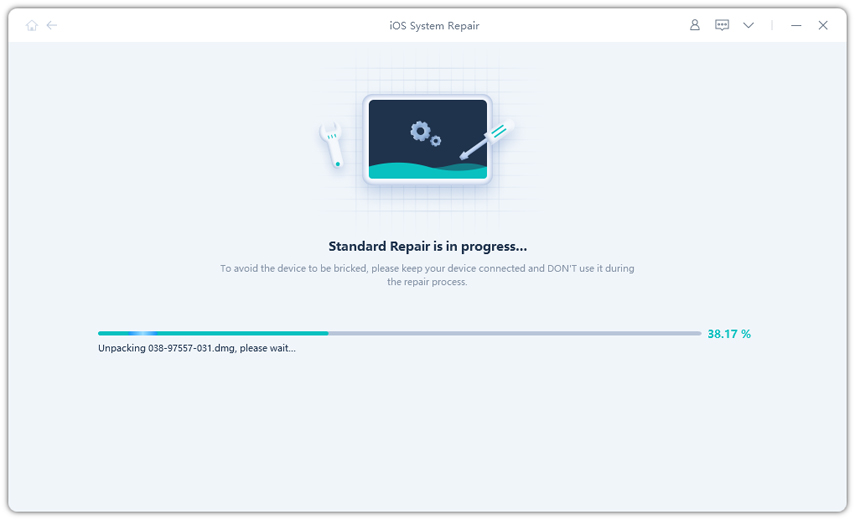
step 4 Download the matched firmware --- UltFone detects your model automatically.
-
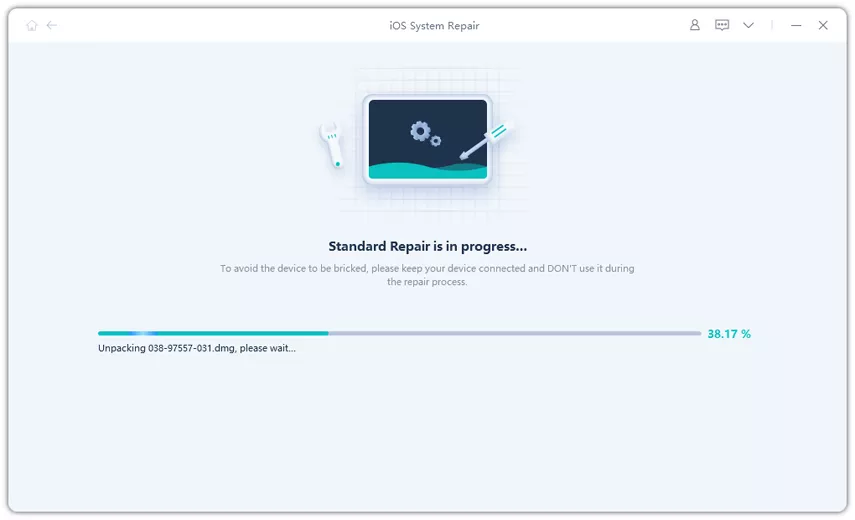
step 5 Click Start Standard Repair. Your iPad reboots automatically when complete, all data intact.
Don't Factory Reset Too Early: What Reddit Users Are Worried About
Saw a thread on r/ios where people were freaking out because iPadOS 27 got stuck on "verifying update" and they just went straight for a factory reset. Don't do that yet. Here's what actually worked for 3 real people:
Case 1 - Just wait it out.
One guy with an iPad Pro said he left it alone for about 25 minutes. Didn't touch anything. Eventually, it finished installing on its own.
Case 2 - Delete and try again
An iPad Air user got stuck twice. What fixed it was deleting the update file, then re-downloading it over a mobile hotspot instead of wifi.
Case 3 - Last resort tool
With an iPad mini, another person tried everything manually, but nothing worked. Ended up using UltFone iOS System Repair, and it fixed it in one click without deleting any data. The point is, don't factory reset right away. Try waiting, deleting/re-downloading, then using a repair tool if you have to.
FAQs About iPadOS 27 Stuck on Verifying Update
My iPad is frozen on Verifying update will I lose data when I fix it?
Not with most fixes. Force restart, switching Wi-Fi, and UltFone Standard Repair all keep your data safe. Recovery Mode and Deep Repair will erase everything on your device. So save those for last.
Stuck on verifying update with iPadOS 27? Can I fix it without iTunes?
For sure. Force-restart the iPad, remove the update, free up space, or use UltFone iOS System Repair. All of those don't require iTunes.The only ones that need a computer are methods 6 and 8.
What should I do if iPadOS 27 keeps failing after every fix?
A persistent failure likely points to a device-specific bug in the beta. Use UltFone's one-click downgrade to return to stable iPadOS and wait for Apple's next beta release.
Conclusion
PadOS 27 beta stuck on verifying update can be annoying, but in most cases, the problem is easy to fix without losing your data. Simple solutions like waiting a little longer, force restarting the iPad, or downloading the update again are often enough to get the update working normally.
When nothing manual works, UltFone iOS System Repair provides a one-click, safe fix for iPadOS 27 stuck at verifying update. Download it today at ultfone and get your iPad running again.
- 1-click to fix iPhone/iPad stuck in recovery mode for free
- Repair 150+ iOS 27/26/18 update problems without data loss
- Fix iOS 27/26 downgrade stuck problems
- Downgrade iOS 27/26 without losing data
- Fix 100+ iOS update/restore error
