

How to Fix iOS 27 boot loop Without Losing Data
 Jerry Cook
- Updated on 2026-08-31 to iOS 27
 Jerry Cook
After the recent release of iOS 27, it's displaying the same issues as earlier Beta versions had. One issue is the iOS 27 boot loop, where the iPhone gets stuck showing the Apple logo repeatedly.
This problem locks you out of your phone completely, but it can be fixed.
In this guide, we'll explain why it happens and share 10 possible fixes with step-by-step instructions to get your iPhone out of the boot loop. So, keep reading!

- Part 1: Why is an iPhone Stuck in an iOS 27 Loop?
- Part 2: Comparison of All 10 Fixes for iOS 27 Loop
- Part 3: 10 Methods to Resolve iPhone Stuck in iOS 27 Loop
- Force Restart Your iPhone
- Verify Internet Connection and Stability
- Check iPhone Storage and Free Up Space
- Ensure Sufficient Battery Charge (50% or more)
- Use UltFone iOS System Repair to Fix the Boot Loop
- Reset All Settings
- Utilize iOS 27 Built-in Recovery Assistant (Device-to-Device)
- Update or Restore Using iTunes/Finder (Recovery Mode)
- Enter DFU Mode for a Deep System Restore
- Downgrade to the Stable iOS Version
- FAQs About iOS 27 Boot Loop
Part 1: Why is an iPhone Stuck in an iOS 27 Loop?
Understanding the root cause helps you pick the right fix, and avoid making things worse. Here are the most common reasons behind the iOS 27 boot loop:
-
Interrupted or failed Beta installation: If the update is interrupted (low battery, lost Wi-Fi, or not enough storage), iOS may not install properly and can get stuck restarting.
-
Beta software bugs: Early Beta versions are often unstable and may contain bugs that cause repeated crashes and reboots.
-
Incompatible apps: Some apps may not work correctly with the new Beta and can trigger system crashes during startup.
-
Not enough storage space: Installing a Beta on a nearly full device can lead to update failures and boot loops.
-
Low battery during update: If the phone powers off while installing the update, important system files may become corrupted.
-
Jailbroken device: Modified system files from a jailbreak can conflict with the Beta software and prevent the phone from starting properly.
-
Corrupted Beta profile: A damaged Beta enrollment profile can cause the update process to fail.
-
Overheating or hardware issues: Excessive heat or an aging battery can interrupt the installation process.
-
iCloud sync conflicts: In rare cases, active iCloud syncing during an update can interfere with installation.
-
Failed downgrade attempt: Trying to revert from a Beta version incorrectly can leave the device stuck in a restart loop.
Part 2: Comparison of All 10 Fixes for iOS 27 Loop
Here's a short comparison of the 10 solutions to fix the iOS 27 loop, explained in the latter section. So, you have an understanding of what each method does:
| Method | Data Loss | Ease of Use | Best For |
|---|---|---|---|
| Force Restart | No | Easy | Minor glitches, first attempt |
| Verify Internet Connection | No | Easy | Loop during OTA update |
| Free Up Storage | Varies | Moderate | Storage-triggered install failure |
| Ensure 50%+ Battery | No | Very easy | Battery-related update crash |
| UltFone iOS System Repair | No | Very easy | iPhone inaccessible, fixes all types of iOS issues, including boot loop without data loss |
| Reset All Settings | Yes, but only settings | Easy | Settings/config conflicts |
| Built-in Recovery Assistant | No | Moderate | Device-to-device Beta recovery |
| iTunes/Finder Recovery Mode | Yes, if you choose “Restore” | Hard | Failed update restoration |
| DFU Mode | Yes | Very hard | Deep system corruption |
| Downgrade to Stable iOS | No | Very easy | Persistent Beta instability |
Part 3: 10 Methods to Resolve iPhone Stuck in iOS 27 Loop
Not every method suits every situation. Therefore, go through these 10 solutions. But if you want the fastest, safest fix that skips the manual troubleshooting, move straight to Method 5:
Force Restart Your iPhone
A force restart is a quick way to stop an iOS 27 boot loop without deleting any data or using a computer. Unlike a normal shutdown, it forces the iPhone to restart at the hardware level, which can clear temporary software issues.
It's often the first thing to try if your iPhone repeatedly restarts after installing the iOS 27, especially if the problem began recently. Here's how to force restart your iPhone:
- step 1 Press and quickly release the "Volume Up" button. Next, press and quickly release the "Volume Down" button.
- step 2 Press and hold the "Side" (Power) button. Keep holding it until the Apple logo appears, then release.
Verify Internet Connection and Stability
Sometimes an iOS 27 boot loop happens because the update is still trying to finish in the background. But it keeps failing due to a poor internet connection. Connecting the iPhone to a stable Wi-Fi network can allow the update to complete and stop the restart cycle. To do so:
- step 1 Check that your iPhone is connected to a strong and stable Wi-Fi network. If you can't open "Settings," move closer to your Wi-Fi router.
- step 2 Try a different, more dependable internet connection if your current one is unstable.
- step 3 Avoid public, hotel, or office networks that may block or interrupt downloads.
- step 4 Once connected, leave the iPhone for 10--15 minutes to see if the update finishes automatically.
- step 5 If nothing changes, perform a force restart and let the update try to resume.
Check iPhone Storage and Free Up Space
iOS needs a good amount of free space (about 15--20 GB) to properly install a Beta update. If your iPhone doesn't have enough storage when the update starts, it can fail halfway and cause a boot loop.
This usually happens if your phone had very low storage before the iOS 27 Beta install, or if you saw a "Not Enough Storage" warning and still tried to update. The solution is to free up space. To do so:
-
step 1 If you can open "Settings," head to "General." Tap "iPhone Storage." Check for large apps, old files, and iOS storage suggestions.
-
step 2 Delete unused apps (you can reinstall them later if needed) or offload them. Remove large or duplicate photos and videos.
-
step 3 Clear Safari data. Head to "Settings." Choose "Safari." Tap "Clear History and Website Data."
-
step 4 Empty the "Recently Deleted" folder in "Photos." After freeing up about 15--20 GB, force restart the iPhone to see if the update continues.
Ensure Sufficient Battery Charge (50% or more)
When your iPhone battery is very low, it may turn off during the update and cause system files to break, leading to a boot loop. In some cases, simply plugging it into a charger and leaving it can give it enough power to finish the stuck installation.
This is most useful if the battery was under 50% or the phone wasn't plugged in while installing the iOS 27. Here's how to charge your iPhone properly:
- step 1 Plug your iPhone into a wall charger, not a computer USB port. Use an original Apple or MFi-certified cable for stable charging.
- step 2 Leave it charging for 20--30 minutes without using it. Then, check if the restart loop slows down or if a progress bar appears.
- step 3 If nothing changes after 30 minutes, try a force restart while still plugged in. But if it still doesn't work, move on to the next fix.
Use UltFone iOS System Repair to Fix the Boot Loop
In case you're unable to access your iPhone, UltFone iOS System Repair can fix the iOS 27 boot loop for you using a computer. Unlike iTunes, it can repair the system without a backup and without erasing your photos, messages, or apps. Here's what UltFone can do:
-
Fixes 150+ iOS issues, including boot loops, black screens, stuck Apple logos, and update errors, without data loss.
-
One-click entry and exit from Recovery Mode, with no button combinations needed.
-
Downgrade from iOS 27 to a stable iOS 26, without iTunes.
-
Upgrade and install IPSW without iTunes.
-
Supports all iPhone models, including the latest iPhone 17 series and all iOS versions, including iOS 27.
-
Factory Reset without passcode, useful if you're locked out, in addition to the loop
-
Fixes iTunes errors that block restoration attempts.
Here's how to fix your iPhone stuck in iOS 27 boot loop with UltFone:
-
step 1 Open UltFone on your computer. Then, connect your iPhone that's stuck in the iOS 27 boot loop to the same PC. Click "Start Repair."
-
step 2 Choose "Standard Repair." Hit "Standard Repair" again to confirm. Tap "Start Standard Repair."
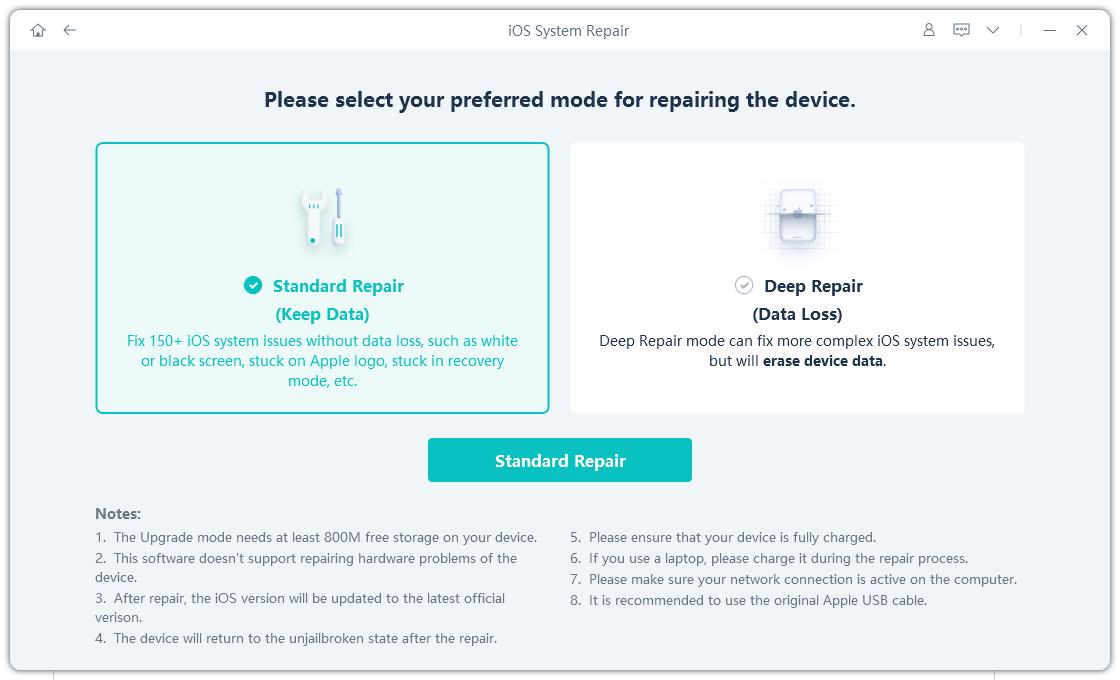
-
step 3 Hit "Download" to get the firmware package. Once the firmware downloads, click "Start Standard Repair."
-
step 4 Wait for UltFone to repair the boot loop issue. Once completed, your iPhone will restart without the problems. Hit "Done."

Reset All Settings
"Reset All Settings" clears your iPhone's settings like Wi-Fi, display, notifications, and keyboard changes. But it does not delete your apps or personal data. It can help fix boot loops caused by wrong or corrupted settings from the iOS 27. Here's how to do an iPhone stuck in reboot loop fix in 2026:
- step 1 Wait for a moment when your iPhone briefly turns on between restarts. Head to "Settings." Choose "General."
- step 2 Tap "Transfer or Reset iPhone." Click "Reset." Then, choose "Reset All Settings." Enter your passcode and confirm.
- step 3 The iPhone will restart automatically. All settings will go back to default, but your data and apps will stay. Reconnect to Wi-Fi after it restarts.
Utilize iOS 27 Built-in Recovery Assistant (Device-to-Device)
Apple's Recovery Assistant lets you use another iPhone or iPad to help fix a stuck iPhone without needing a computer. It uses a wireless recovery feature to repair the system instead of iTunes or Finder.
This is best if you don't have a Mac or PC but have another Apple device nearby, and your iPhone (iPhone 12 or newer) is stuck in a boot loop that isn't fully corrupted. Follow the steps below for an iPhone boot loop fix in 2026:
-
step 1 Place a second iPhone or iPad (iOS 17 or later) near the stuck iPhone. On the second device, head to "Settings."
-
step 2 Choose "General." Tap "Transfer or Reset iPhone." Then, click "Get Started" and choose "Restore a Nearby Device."
-
step 3 Follow the prompts and confirm on the looping iPhone if needed. The second device will download and send the repair software over Wi-Fi.
-
step 4 Wait for the process to finish, and then the iPhone should restart normally.
This feature's availability and the exact UI may not be present in all early Beta iterations. If you don't see this option, proceed to Method 8.
Update or Restore Using iTunes/Finder (Recovery Mode)
Recovery Mode is Apple's emergency fix that lets you repair your iPhone using a computer. When connected to iTunes/Finder, you can either update iOS without deleting data or fully restore the device with a fresh install.
It's best for longer-lasting boot loop problems, and you should try "Update" first to avoid losing data. Here's how to update or restore your iPhone using iTunes/Finder:
-
step 1 Connect your iPhone to a computer using a cable. Open iTunes (Windows/older Mac) or Finder (newer Mac).
-
step 2 Quickly press "Volume Up" and release it. Then do the same with "Volume Down." Next, hold the "Side" button.
-
step 3 Keep holding even if the power-off screen appears. Release when you see the Recovery Mode screen (cable/computer icon).
-
step 4 On the computer, choose "Update" or "Restore." First, try "Update" to reinstall iOS without deleting data.
-
step 5 Wait for the download and installation to finish. If it doesn't do the job, repeat and choose "Restore" to erase and reinstall iOS.
Enter DFU Mode for a Deep System Restore
DFU (Device Firmware Update) Mode is the deepest way to restore an iPhone. It bypasses normal system loading and lets a computer reinstall the firmware directly on the device. You can also manually install an IPSW file if needed.
This is best when iTunes/Finder can't detect your iPhone in Recovery Mode, or the iPhone is completely stuck and can't even enter Recovery Mode. Here's how to use DFU Mode to restore your iPhone:
-
step 1 Quickly press and release "Volume Up." Then, do the same with "Volume Down." Next, press and hold the "Side" button for 3 seconds.
-
step 2 While holding it, also press and hold "Volume Down." Keep holding both for about 10 seconds.
-
step 3 Release the "Side" button, but keep holding "Volume Down" for 5 more seconds. The screen should stay black (no Apple logo). If not, try again.
-
step 4 Connect your iPhone to a computer. iTunes/Finder will detect it in the DFU mode.
-
step 5 Choose "Restore" (or use an IPSW file if needed). Wait for the process to finish. Your iPhone will restart like new.
Downgrade to the Stable iOS Version
In a situation where iOS 27 keeps causing boot loop problems, you can go back to the last stable version of iOS 26. This is the best long-term fix, but Apple only allows downgrades for a short time.
You may need to act quickly or use a tool like UltFone iOS System Repair to help with the restore process. It can downgrade iOS without deleting your data. Here's how to downgrade iOS 27 with UltFone:
-
step 1 Open UltFone on your computer and connect your iPhone that's stuck in the boot loop to the same computer. Then, click "iOS Upgrade/Downgrade."
-
step 2 Select "Downgrade" mode to roll back to an older iOS version. Hit "Downgrade" to confirm.
-
step 3 The tool will automatically detect your device and show available firmware versions. Click "Download" to get the firmware package.
-
step 4 After the firmware downloads, click "Initiating Downgrade." The downgrade may erase your data, so make sure you have a backup before continuing.
-
step 5 Keep your device connected while the downgrade is in progress. Once finished, your iPhone will restart on the previous iOS version.
FAQs About iOS 27 Boot Loop
Will I lose my data if I fix the iOS 27 boot loop?
Not always. Most fixes, including Methods 1--7 mentioned above, are designed to keep your data safe. A tool like UltFone iOS System Repair can also fix severe system problems without data loss, backup, and technical knowledge. Data loss is usually only a risk with DFU Mode, or downgrading to an older iOS version, so it's best to try the data-saving options first.
How do I know which iPhone models are affected by the iOS 27 boot loop?
The iOS 27 boot loop is not limited to a specific iPhone model and can affect any supported device, including the iPhone 12 through iPhone 17 series. In most cases, the problem is caused by software issues such as a failed update, corrupted firmware, or insufficient storage, not by a hardware defect.
Can I install IPSW without iTunes on a Mac?
Yes. On macOS Catalina and later, Finder replaces iTunes for iPhone restores. Place your iPhone into Recovery or DFU Mode, open Finder, and then hold the "Option" key. Click "Restore iPhone" to select an IPSW file that you've downloaded before from your Mac. This allows you to manually install iOS without using iTunes.
Is it safe to keep using the iOS 27 Developer Beta after fixing the boot loop?
Whether you should reinstall iOS 27 depends on how comfortable you are with potential bugs. The first Developer Beta is usually the most unstable, so it's often better to wait for Beta 2 or Beta 3, which usually fix many major issues. For best results, avoid installing Developer Beta on your main iPhone if you depend on it every day.
Conclusion
There are several ways to fix the iOS 27 boot loop, including force restart, freeing storage, Recovery Mode, or DFU Mode. In case the issue is deeper and you can't access your iPhone at all, a tool like UltFone iOS System Repair can fix it without data loss and without requiring technical steps. It can also help you downgrade back to a stable iOS 26 version without deleting your data.
- 1-click to fix iPhone/iPad stuck in recovery mode for free
- Repair 150+ iOS 27/26/18 update problems without data loss
- Fix iOS 27/26 downgrade stuck problems
- Downgrade iOS 27/26 without losing data
- Fix 100+ iOS update/restore error
